Move your data directly between phones and computers
Move photos, videos, contacts, music, apps and documents to another phone or a computer.
Android 8.0 or later · Windows 10 and 11
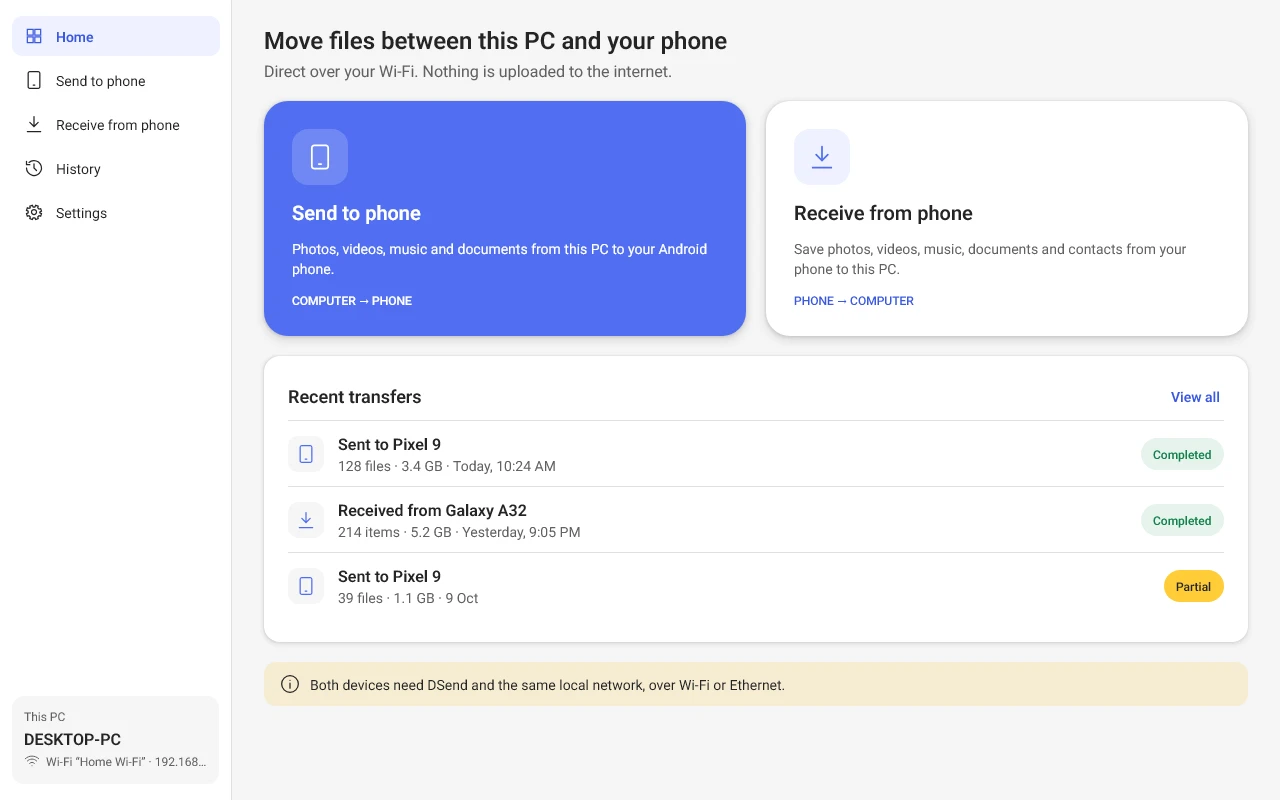
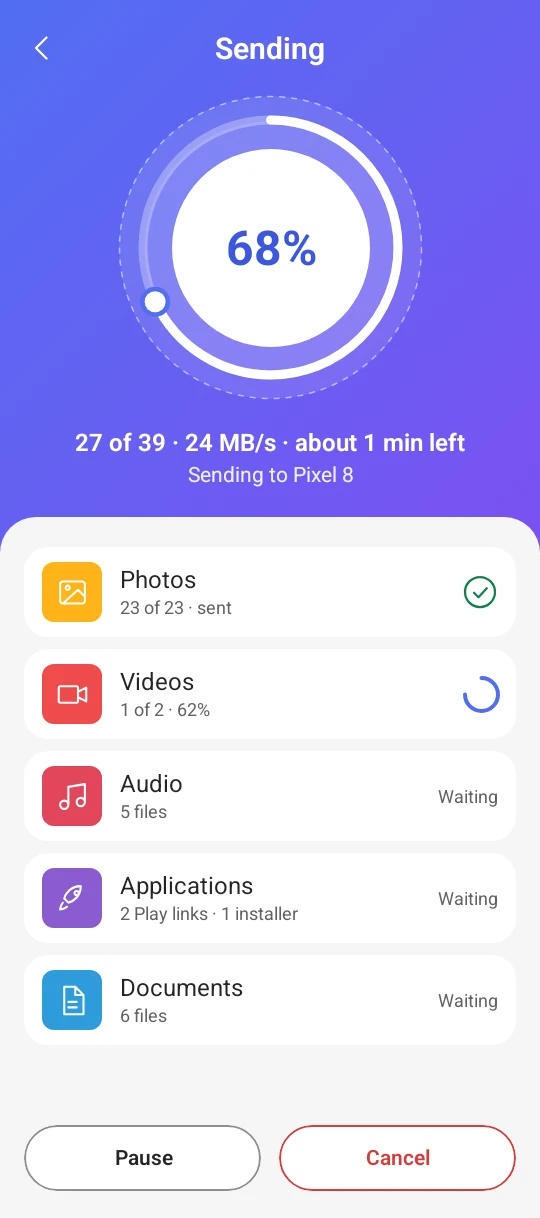
See the app
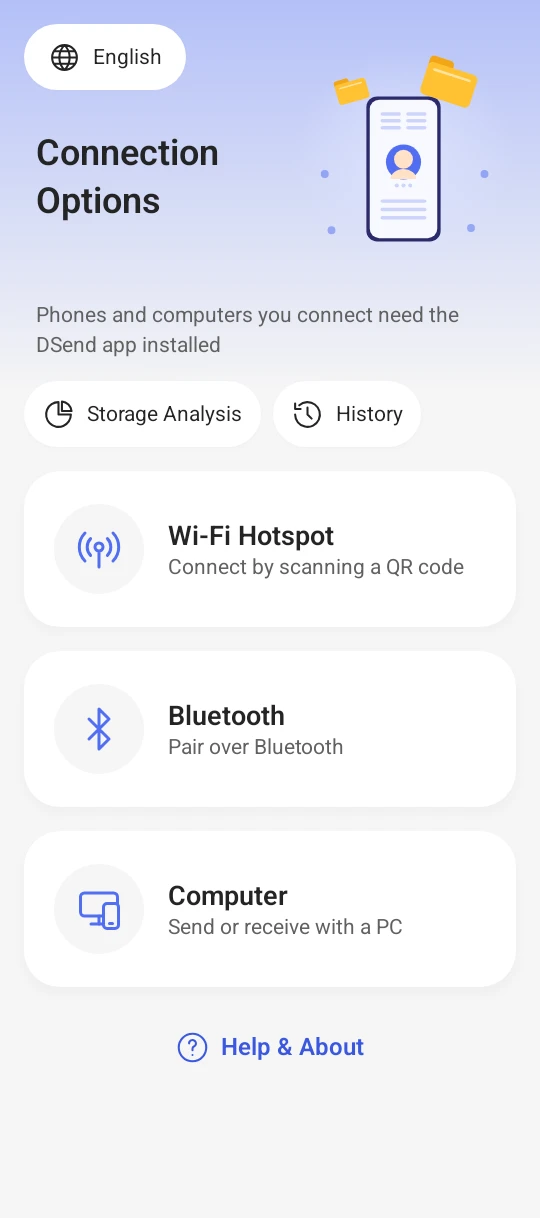
1Home 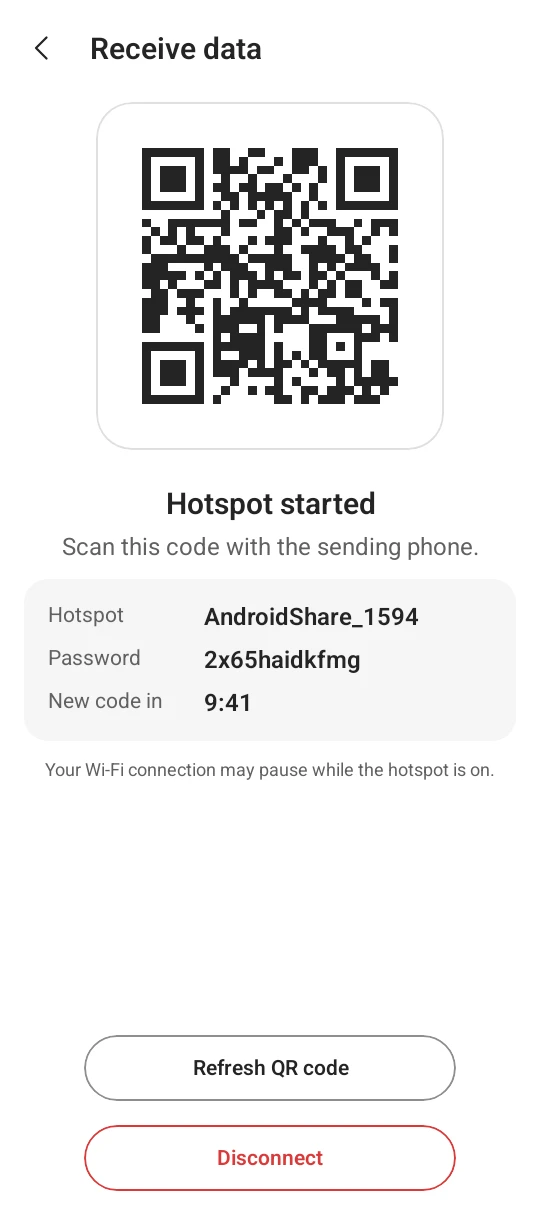
2QR code 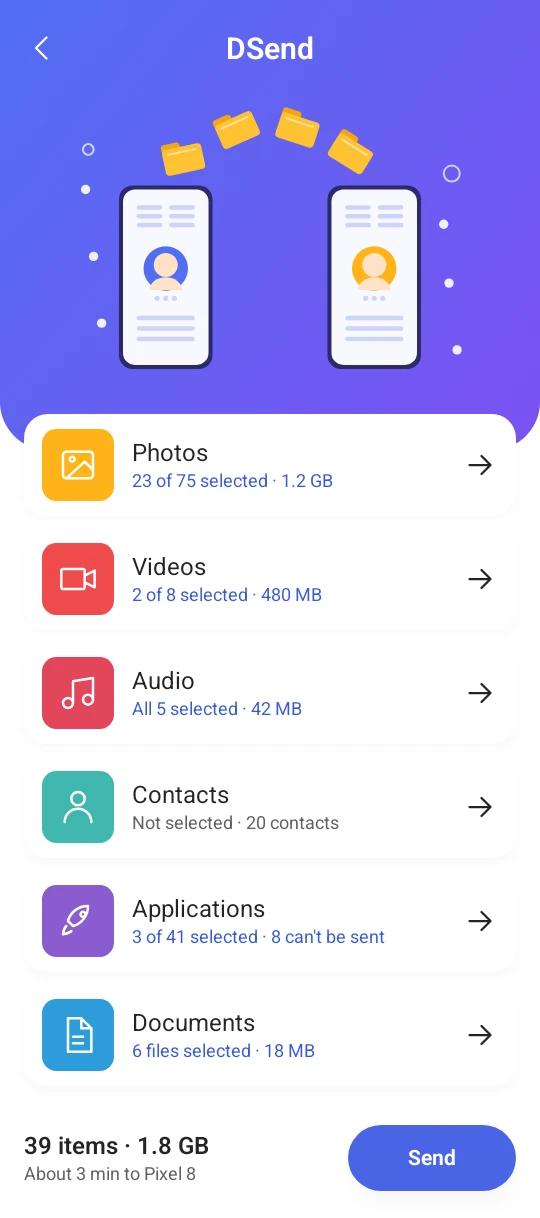
3Choose data 4Sending 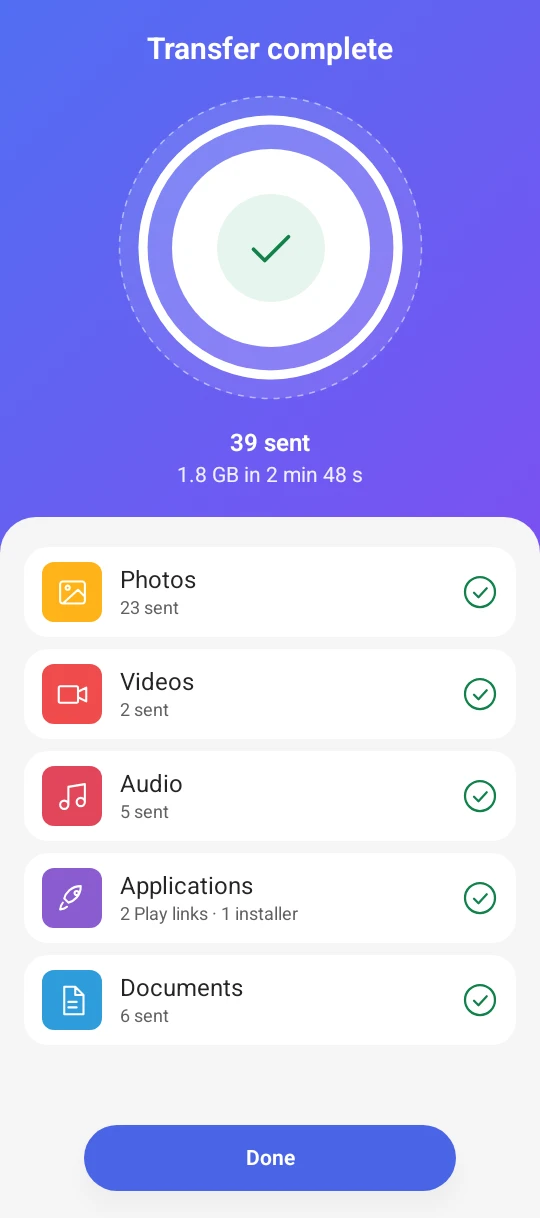
5Complete
Private and secure
Data goes directly between the two devices, and only what you choose is sent to the other one.
End-to-end encrypted
Everything you send is encrypted between the two devices and never passes through a server.
No account needed
No sign-up or sign-in. No name, email or phone number.
No internet needed for transfers
Two phones connect over a private Wi-Fi hotspot or Bluetooth. A computer connects over your local network.
What you can move
- Photos
- Videos
- Contacts
- Music
- Apps
- Documents
When sent to a computer, contacts are saved as a .vcf file.
This version can't move apps to a computer yet.
How it works
Connect two phones directly
- Open DSend on both phones.
- Tap Wi-Fi Hotspot or Bluetooth and pick Receiving phone or Sending phone.
- Follow the on-screen steps to connect the two phones directly.
- Once connected, pick your data on the sending phone and tap Send.
Connect directly to a computer
- Install DSend for Windows on your PC.
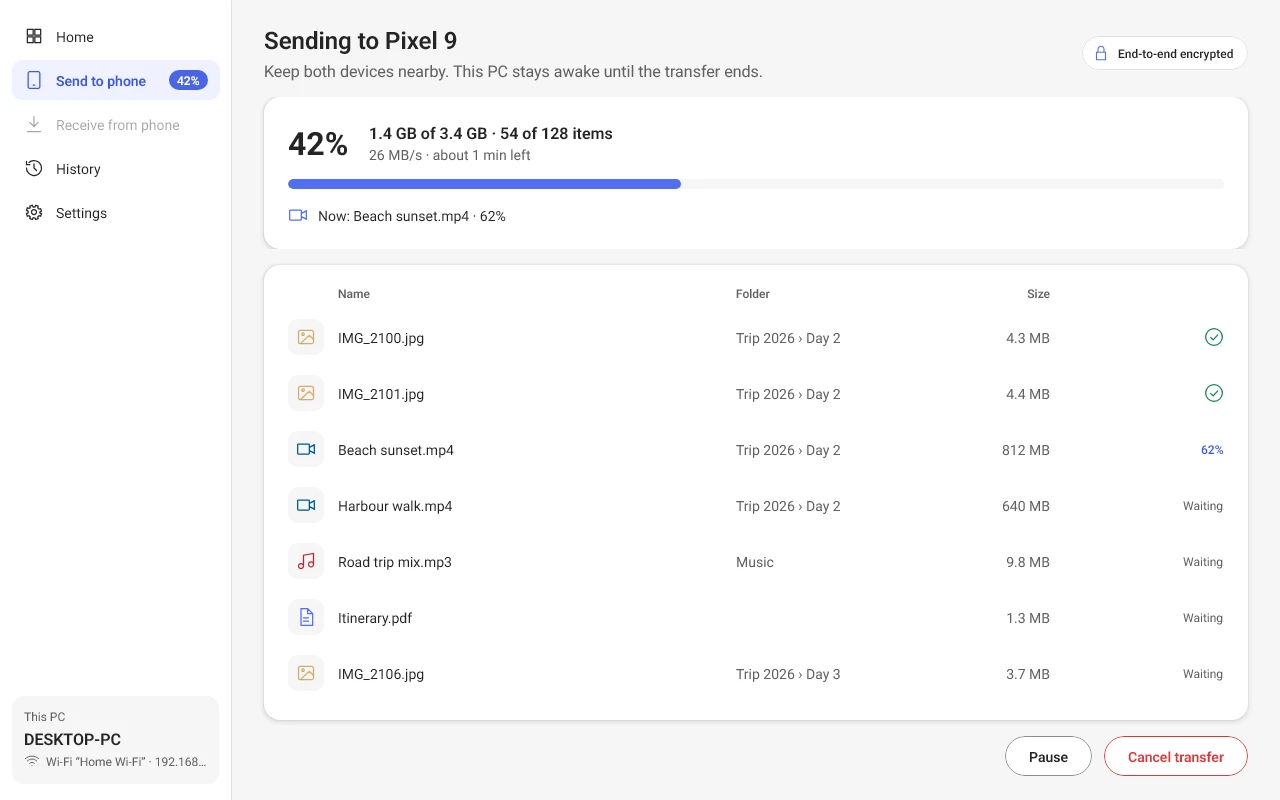
- On your PC, open DSend and choose Send to phone or Receive from phone.
- Tap Computer on your phone and scan the code.
Download DSend for Windows
Send files from your PC to your phone, and receive files from your phone on your PC.
Windows 10 and Windows 11
You're on a phone. Open dsendapp.com on your computer to download.
FAQ
Is DSend free?
Yes. The Android app is free and shows ads. DSend for Windows is free and has no ads.
Do I need the internet?
No internet is needed for transfers. Two phones connect over a private Wi-Fi hotspot or Bluetooth. A phone and a PC need to be on the same network.
Are my files uploaded?
No. What you send travels directly between the devices, encrypted end to end. Your files aren't uploaded to the internet.
Which devices does DSend work on?
Android phones with Android 8.0 or later, and PCs with Windows 10 or Windows 11. There is no iPhone version yet.
Where do I find what I received?
Open Transfer history in the app to find and open what you received.
Your files never leave your devices except to go to the other device.
Read the privacy policy